Choose the logo
Drop a JPG, PNG, or WebP file up to 20 MB, or browse for it. Pick the largest original you have, not a screenshot of a screenshot.
Drop your logo here
or choose a file from your device
Waiting for a logo file.
Your logo is processed in this browser. Nothing is uploaded to a server.
Most logo trouble starts before the cutout: the file you have was flattened a long time ago.
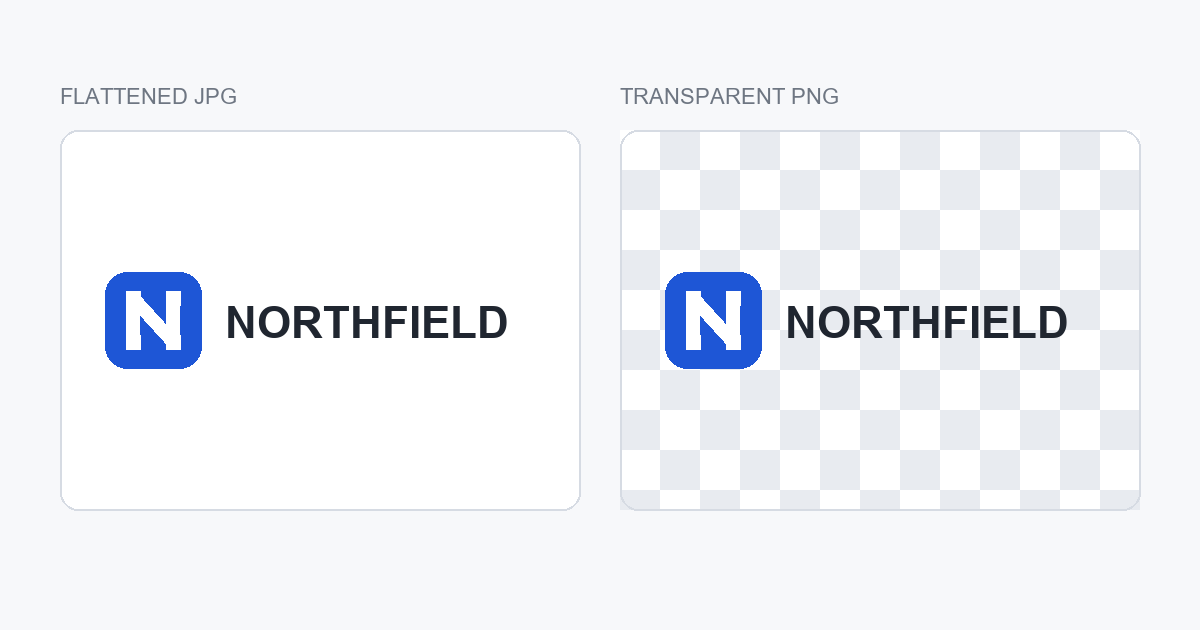
A logo arrives as a JPG more often than people expect: exported from a slide deck, lifted from a marketplace listing, sent by a printer as a proof. JPG has no alpha channel, so “transparent” had to be painted in, usually as flat white. Place that file on a dark header or a photograph and the white rectangle comes along with it.
A transparent PNG stores an alpha channel instead: every pixel carries a colour and an opacity value, so a wordmark can sit on any background without a box and its edges can blend into what is behind them.
The catch is the edge. If a logo was flattened onto white, its anti-aliased rim is a blend of ink and white; remove the white and those pixels can survive as a pale halo that only shows on dark backgrounds. A cutout can reduce it but cannot recover alpha that was thrown away. If a vector source exists — AI, EPS, or SVG — use it: the edge can be rebuilt instead of guessed.
One file, three steps, no editor to learn.
Drop a JPG, PNG, or WebP file up to 20 MB, or browse for it. Pick the largest original you have, not a screenshot of a screenshot.
The model is prepared on the page and applies an alpha mask to the whole image. Progress is shown while it works, and the result appears next to the original.
Inspect the edges at 300 to 400 percent on the checkerboard, then on the background you will actually use. Download the PNG when both hold up.
There is no upload step and no project to save: the image is decoded locally, masked, and assembled into a PNG in the browser. The quality ceiling is the file you choose; a heavily compressed JPG gives the model less edge information than a clean PNG export.
A portrait gives a model broad shapes. A logo gives it a few hundred pixels of edge and no margin for error.
Type is mostly edges. A 40-pixel wordmark can carry two or three pixels of blended colour along every stem, and those in-between pixels are what make text look smooth. A hard threshold snaps each to fully opaque or fully transparent and leaves a grey step where the soft edge was. Check on black, not white: white hides exactly this defect.
A single-ink logo is a colour-knockout problem: keep the ink, drop everything else. Automatic cutouts usually do well here, though a careful recolour can be cleaner. Gradients are different — a soft gradient, glow, or photographic texture needs a real alpha matte, so inspect for banding and for a faint rectangle where a bounding box used to be.
Hairlines, the connectors in a script logotype, and the counters inside e, a, and o break first. A one-pixel stem can vanish or double in weight, and a tight counter can fill in. Zoom past the point where the logo looks good on screen: if the smallest feature survives, the rest will.
You cannot judge a dark cutout against black. Confirm the background is gone on the checkerboard, test a mid-grey, then the surface the logo was designed for. A mark that reads cleanly on white can still show a pale rim on charcoal, and that rim is the most common last-minute rejection.
All three can hold transparency. They are not interchangeable, and one of them cannot be produced by any cutout tool.
| Format | Transparency | Best for | Watch out |
|---|---|---|---|
| PNG | Lossless alpha channel | Delivering a raster logo to clients, documents, and print | File size grows quickly at large pixel dimensions |
| SVG | Vector paths; no pixels to fade | Flat and type-based marks at any size, web and print | Only a real vector source produces it; tracing a PNG is an approximation |
| WebP | Alpha channel, smaller files | Web pages and app interfaces | Weaker support in office suites and older design tools |
If the mark is flat or typographic and the original vector exists, use SVG: crisp at every size, no edge pixels to fringe, and usually smaller than a high-resolution PNG. Send it to a printer or a developer.
When no vector exists, a transparent PNG is the delivery format: alpha preserved, opens everywhere, and what marketplaces, slide decks, and profile uploads expect. Export at the largest size you reasonably need.
WebP keeps transparency and usually produces a smaller file, so it suits a site header or app screen. It is a weaker choice for files opened in Word, PowerPoint, or older editors, where PNG is the safer handoff.
One warning: saving a cutout PNG as SVG does not make it a vector. Auto-tracing follows the pixel edge and rebuilds the mark as a pile of anchor points, which looks worse at large sizes than the PNG it came from.
The removal model is downloaded to the page and runs on your device. The logo file is not sent to a server: it is read, masked, and turned into a PNG locally. That is a different arrangement from the usual upload-and-wait workflow, and for logo work it matters more than for a holiday photo.
An unreleased brand mark, a client’s identity before launch, or a trademark you have not filed yet is exactly the kind of file people hesitate to send to an unknown server. Keeping it on the machine removes that decision: no account, no library, no stored copy to delete.
The trade-off is that the work happens on your hardware: the first run downloads the model, older devices take longer, and the result still needs an eye check. One image at a time, up to 20 MB, PNG only. Keep the original until the cutout passes.
If the job is a photo rather than a mark, the transparent background maker covers the general case. If you are comparing tools after the remove.bg changes, the remove.bg alternative guide sets out what is confirmed. Either way, the NoBGNow background remover is the same focused workflow.